Web filtering: block unsafe sites
Set up website denylist and whitelist parental controls in the SafeKids360 app.
Updated: 2026-06-06
Web filtering lets you keep your child away from sites you do not want them visiting. SafeKids360 checks the addresses your child opens in their browser and blocks the ones that match your rules. It works across the common Android browsers: Chrome, Samsung Internet, Mi Browser, the built-in AOSP Browser, Firefox, Brave, Opera, Edge, DuckDuckGo, and Vivaldi.
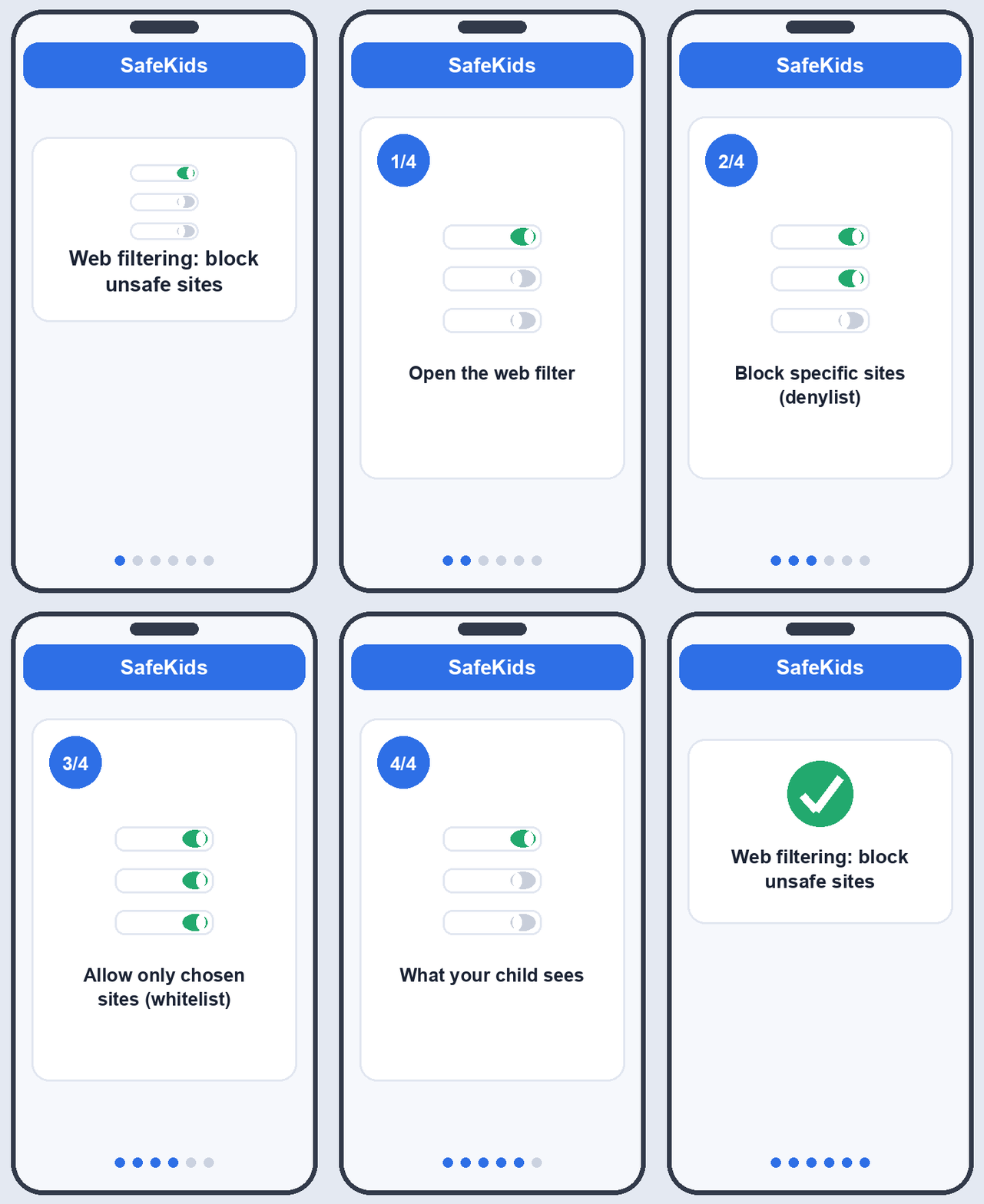
Open the web filter
- Parent app > tap your child's profile.
- Tap Web filter.
Block specific sites (denylist)
This is the default mode. Everything is allowed except the addresses you add.
- Under Blocked sites, tap Add.
- Type any part of the address, for example
casinoorbadsite.com. - Tap Save.
Matching is by text contained in the address and is not case-sensitive, so casino blocks casino.com, m.casino.net, and play-casino.io alike.
Allow only chosen sites (whitelist)
When you want a tightly controlled experience, turn on Whitelist mode. Everything is blocked except the addresses you put on the allow list.
- Toggle Whitelist mode on.
- Under Allowed sites, tap Add and enter each address your child may visit (for example
wikipedia.org). - Tap Save.
What your child sees
When your child opens a blocked address, SafeKids360 covers the screen with a block notice instead of loading the page. They cannot read or dismiss the page underneath.
Tip
Web filtering relies on the Accessibility Service that powers SafeKids360 on the kid phone. If filtering does not seem to work, confirm Accessibility is still on for AlvaKids and that the browser in use is one of the supported ones above. Changes you make apply on the kid phone shortly after you save them.
Related reading: View browser history and Blocking and limiting apps.